← Back to Documentation Index
Page 12
Extra Tools in Toolbar
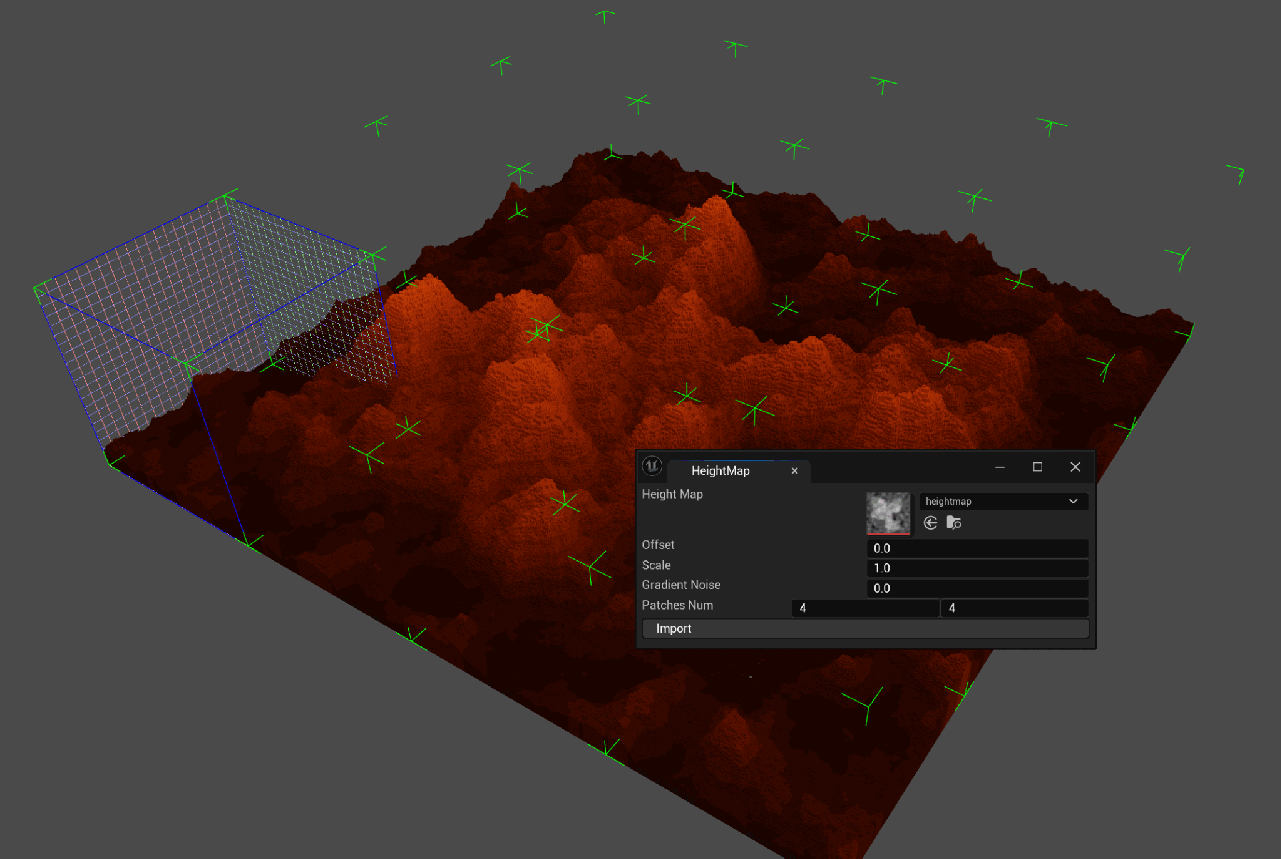
Import Heigh Map
Creates Voxels based on a height map and selected colors.
- Height map
- Height map texture to read the height from.
- Offset
- Adds Height Offset from the bottom of the volume.
- Scale
- Scales the Height value.
- Gradient Noise
- Adds noise to the height value.
- Patches Num
- Sets the number of patches we are going to make the height for. (e.g, The height map is big so we can have 4x4 VoxyAsset in our Bundle and apply the height generation to all of them)
Create Asset Patches
Creates multiple patches of Voxy Assets.
- Patches Num
- Number of the Voxy assets it will create.
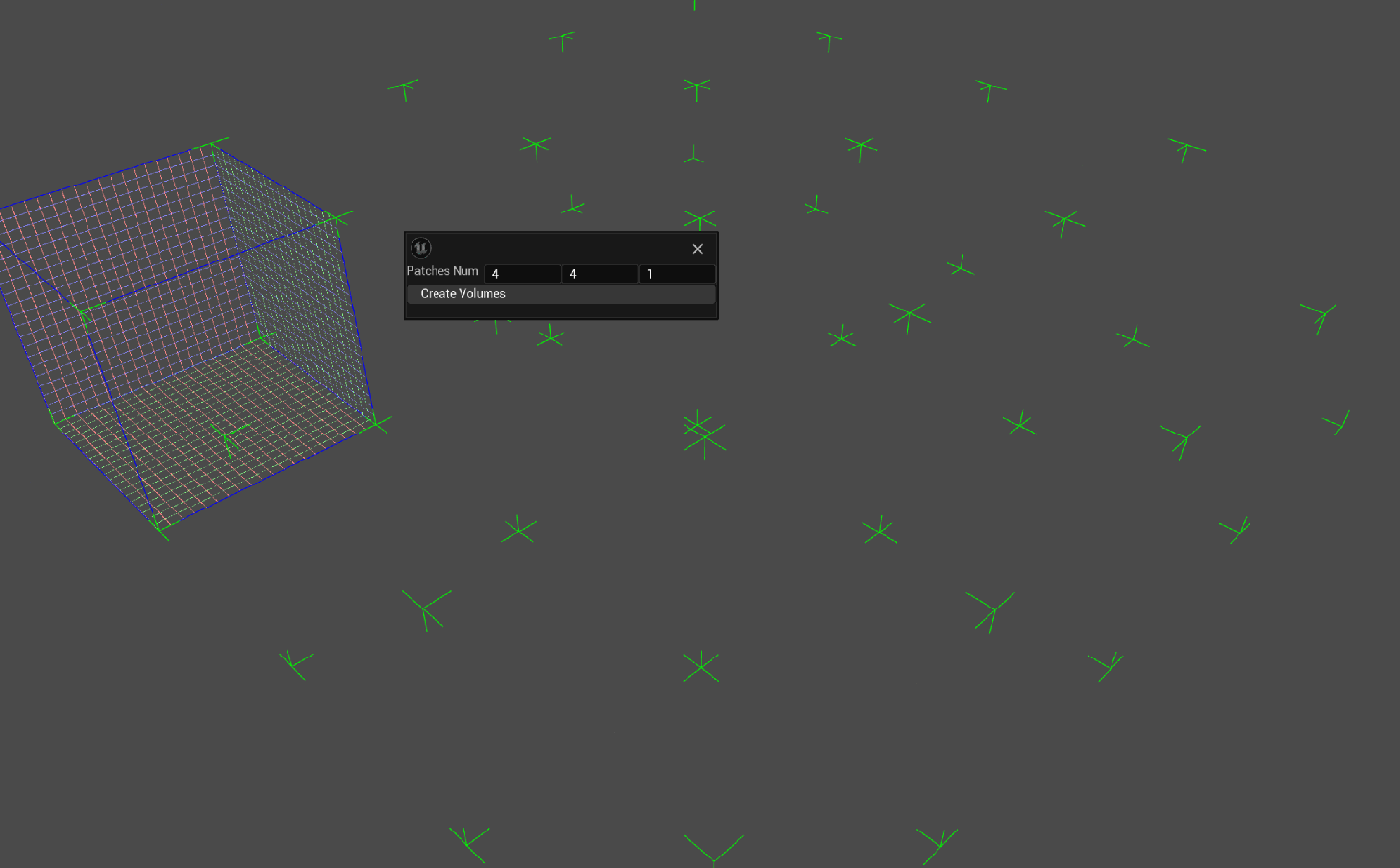
- Number of the Voxy assets it will create.
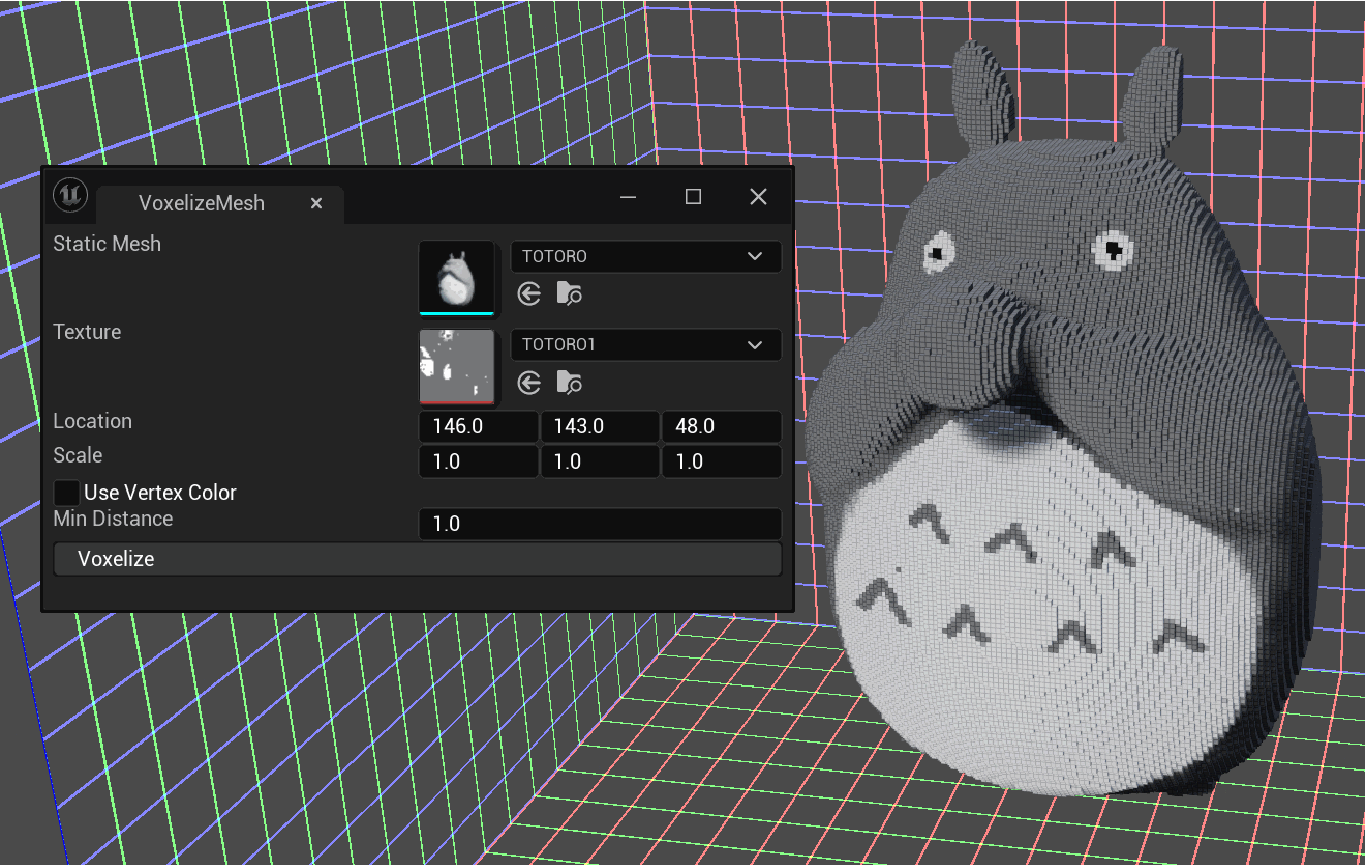
Voxelize Mesh
Voxelizes the selected mesh, and takes the closest color to the selected textures.
- Static Mesh
- Sets the static mesh to get the mesh data for Voxelization.
- Texture
- Sets the texture to read the color for Voxel’s color.
- Location
- Sets the location of the Static mesh to Voxelize.
- Scale
- Sets the Scale of the Static mesh to Voxelize.
- Use Vertex Color
- Sets to use the Static Mesh Vertex color for Voxel’s color.
- Min Distance
- Adds the extrude value to Voxelize the mesh and thicken the Voxels.
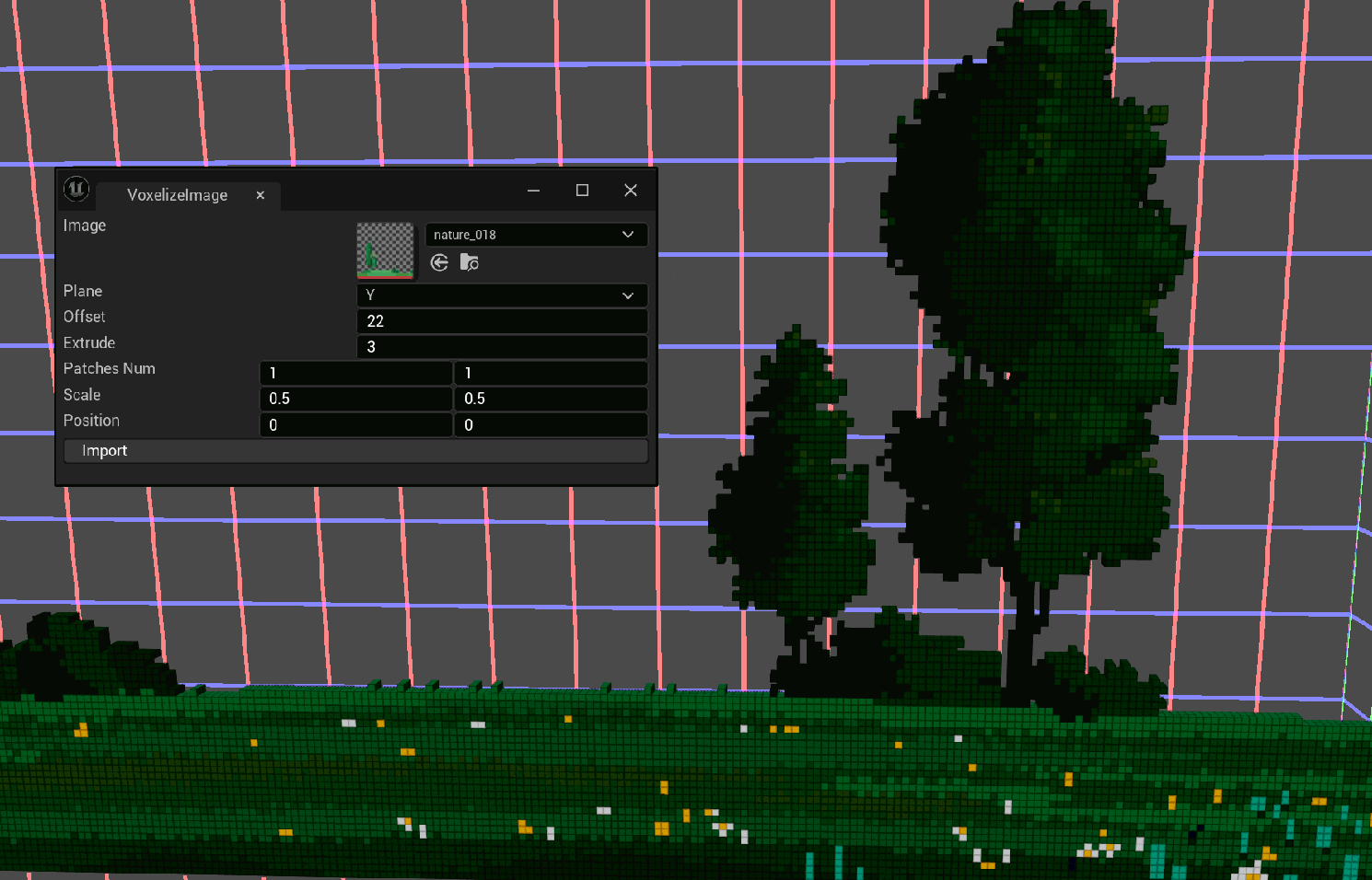
Voxelize Image
Voxelizes an Image
- Image
- Sets the image to Voxelize.
- Plane
- The plane axis to Voxelize the image into.
- Offset
- Adds Offset to the Plane that it is Voxelizing the image.
- Extrude
- Adds Depth to the Voxelized image and thickens the Voxels.
- Patches Num
- The number of the Voxy assets that it is Voxelizing the image into.
- Scale
- Sets the scales of the image to Voxelize.
- Position
- Sets the position of the image to Voxelize.
Covert to Static Mesh
Converts the selected Voxy asset from the List to StaticMesh and saves it in the Project’s Content.
Import Vox File
Converts a .vox file into Voxy Asset format.
Transformed Duplicate
Duplicates the selected Voxel with the offset value in the number of the selected value.
- Offset
- Sets the offset between each duplicate.
- Count
- Sets the number of duplicates.