Page 9
Tools:
Add Tool
Add Point
Left-click to add Voxels.
Left-click and drag to draw Voxels like a freehand tool.
Hold Shift and Click to delete Voxels.
Hold Alt and Left-Click on a Voxel to pick the Voxel color.
Bracket keys adjust the brush size.

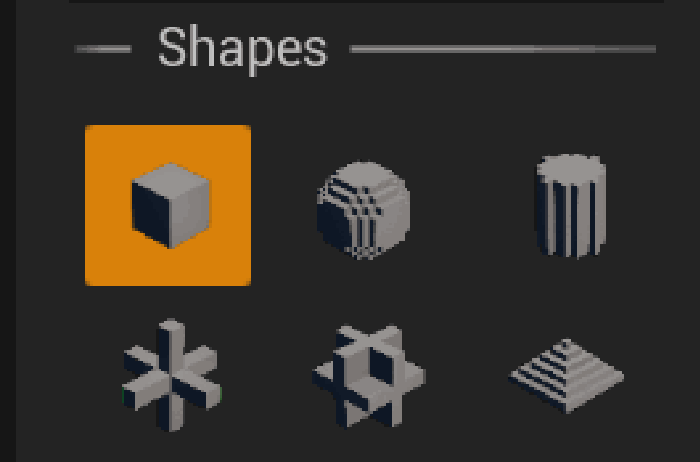
Shapes
Voxels can be drawn in different shapes,
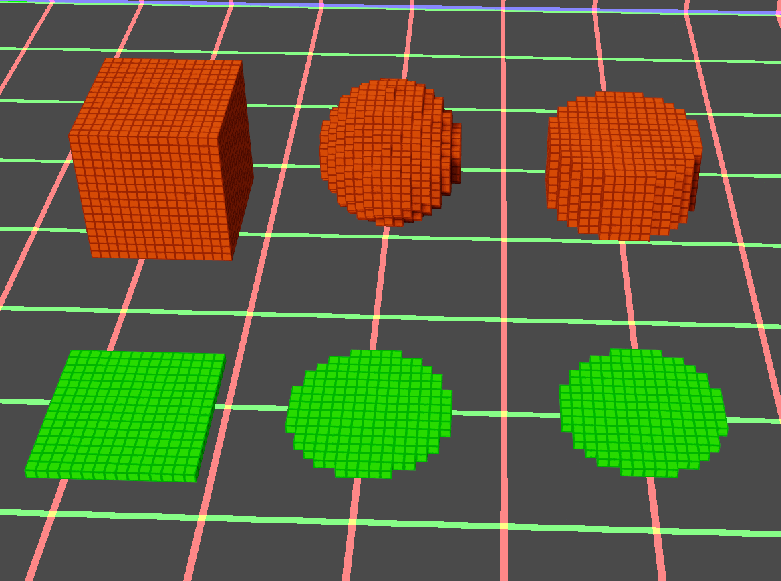
Dimension
And they can be 2d or 3d.
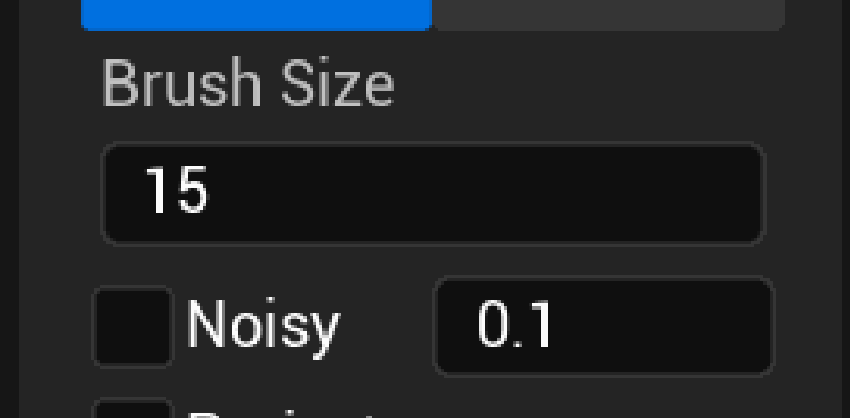
Brush Size
You can change the Brush Size or make it random with each stroke.
Project
Projects on a virtual plane for drawing based on your first mouse click.
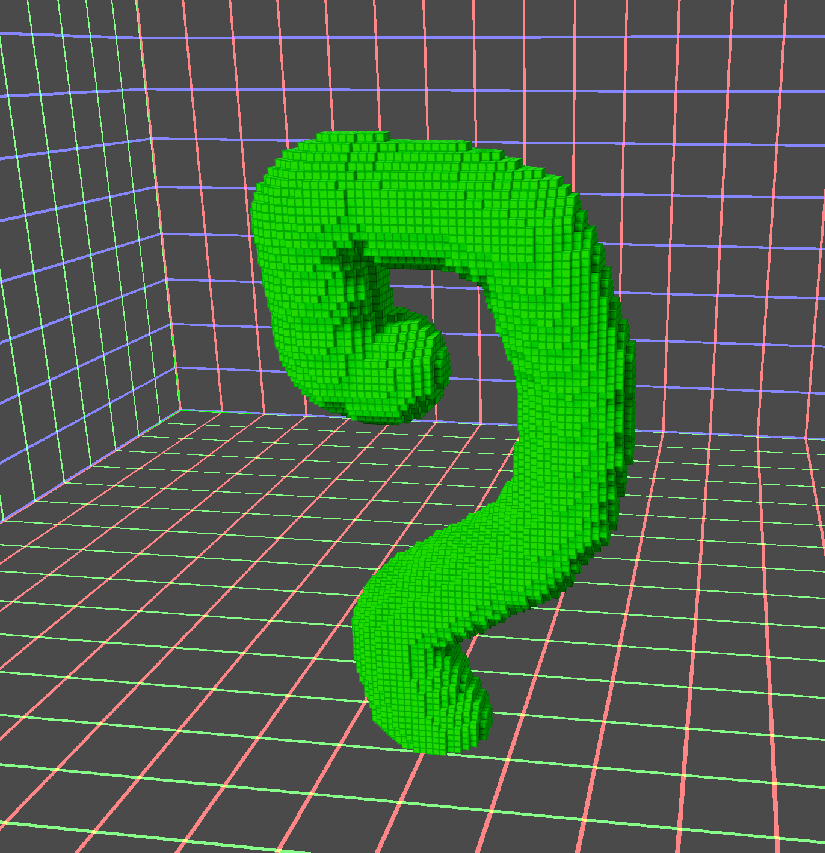
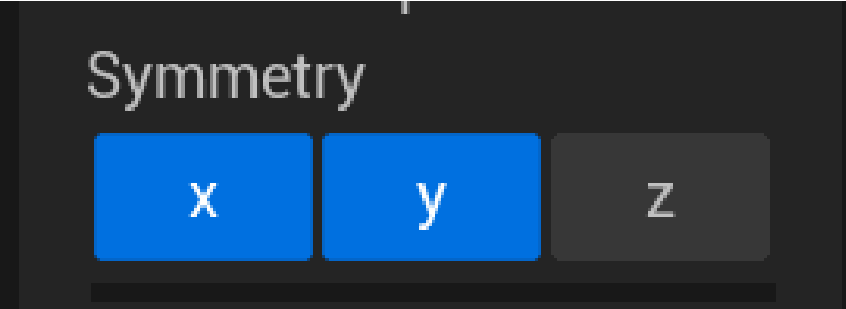
Symmetry
Mirrors your drawing on a selected axis.
Add Line
Left-click and drag to draw Voxels in a line.
Hold CTRL to draw in a straight line.
Hold Shift and Click to delete Voxels.
Hold Alt and Left-Click on a Voxel to pick the Voxel color.
Bracket keys adjust the brush size.
(The settings are the same as the Point sub-tool)

Add Region
Left-click and drag to draw Voxels in a region.
Hold CTRL to draw the region from the bottom.
Hold Shift and Click to delete Voxels.
Hold Alt and Left-Click on a Voxel to pick the Voxel color.
(The settings are mostly the same as the Point sub-tool)

Extrude
Left-click and drag on a face outward to extrude Voxels.
Left-click and drag on a face inward to delete Voxels.
Extruding from a selection extrudes only selected Voxels on the same face.

Add Clay
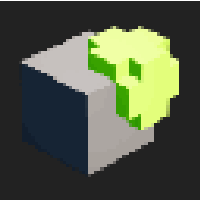
Left-click and drag to add a layer on top of existing Voxels.
Hold Shift and Click to delete Voxels.
Hold Alt and Left-Click on a Voxel to pick the Voxel color.
Bracket keys adjust the brush size.
(The settings are mostly the same as the Point sub-tool)

Bevel/Smooth
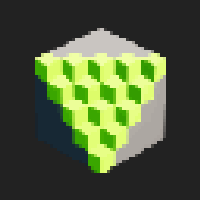
Left-click and drag to Bevel the Voxels in the edges.
Hold Shift, Left-click, and drag to Smooth the Voxels in the edges.
Bracket keys adjust the brush size.

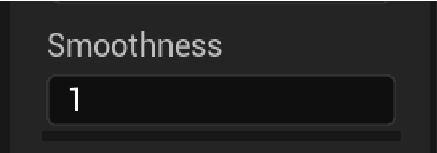
Adjust smoothness using the settings below the brush size.
Clone
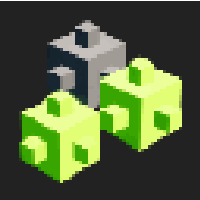
You have to select some Voxels first then use “Copy as a brush” button in the Select tool or just simply click on the clone sub-tool again to get the brush, then, Left-Click to clone the selected Voxel.

Extra Functions
- Fill
- Fills the entire volume with Voxels.
- Fill Center Will fill the volume with the selected shape and brush size at the center